It is essential to destroy a deployment at the end of its life cycle so that no resources are left in place. With a proper destruction procedure, one can mitigate the accrued cost of AWS.
WARNING: Before deleting the deployments, developers will need to account for the following:
When deleting the
CloudFormationstack, the deletion order matters.Delete some of the
CloudFormationstacks before deleting ECR.The name of the items you’re deleting may differ depending on the deployment you are taking down. For example, your deployment’s
CloudFormationstack may not have aregionname.Do NOT take down the
CloudWatchlogs. These are used for statistical analysis later on.
Removing CloudFormation Stacks
When you first go to CloudFormation, it should look something like the following:
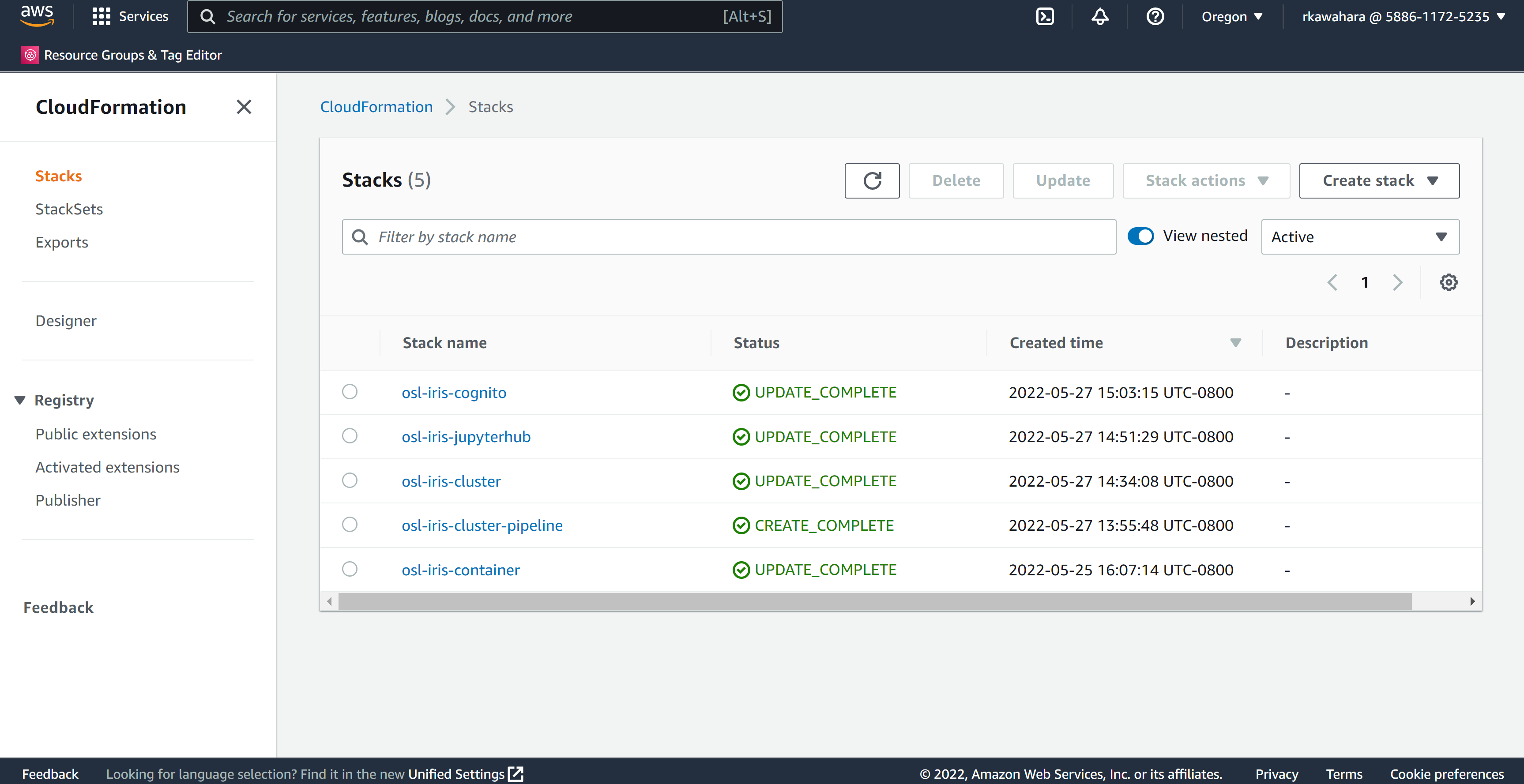
Because the order of removing deployment is essential, you will need to take down the CloudFormation stacks first. Deleting the following CloudFormation stacks will kill the deployment and remove its resources:
<deployment_name>-container<deployment_name>-clusterdeployment_name
NB: Do not manually delete any S3 buckets after emptying them in the steps below.
If you delete the buckets after emptying them, the CloudFormation stack deletions associated with those buckets will fail. To fix the issues regarding deleted buckets, you will have to recreate the empty buckets to proceed.
Therefore, let CloudFormation delete the S3 buckets for you once you empty them.
Follow the below instructions to properly delete these stacks.
Steps to Delete CloudFormation Stacks
1. Prepare to delete the <deployment_name>-container CloudFormation stack
NB: The <deployment_name>-container is independent of other stacks, i.e., the deletion order does not matter.
Empty the
codepipeline-<region>-<deployment_name>-containerS3 bucket
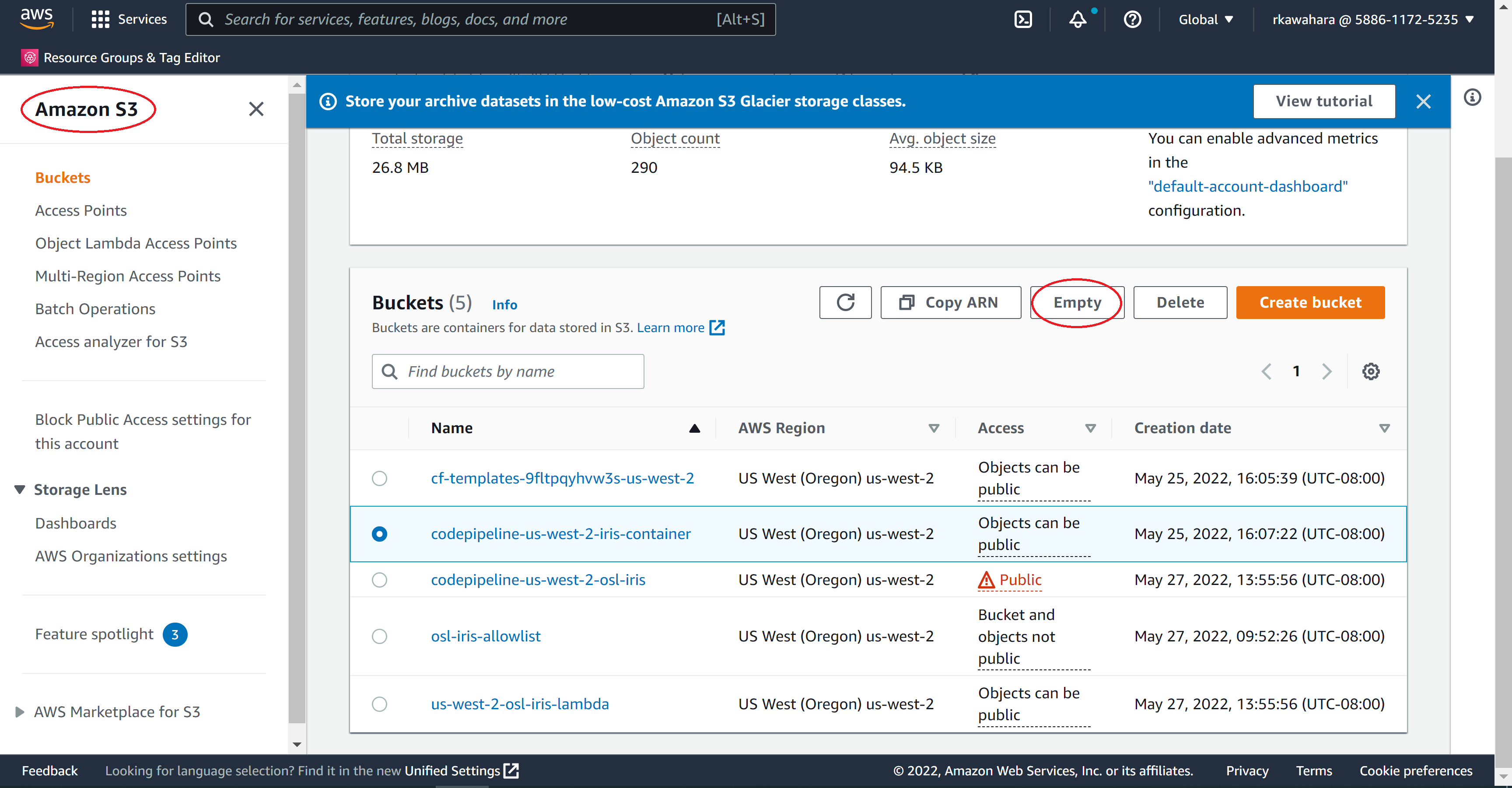
Navigate to the AWS S3 console
Click the
codepipeline-<region>-<deployment_name>-containerS3 bucket option.Click the
EmptybuttonConfirm the deletion of bucket contents by typing
permanently deletein the provided fieldClick the
Emptybutton
2. Delete ECR repos
Navigate to the AWS Elastic Container Registry
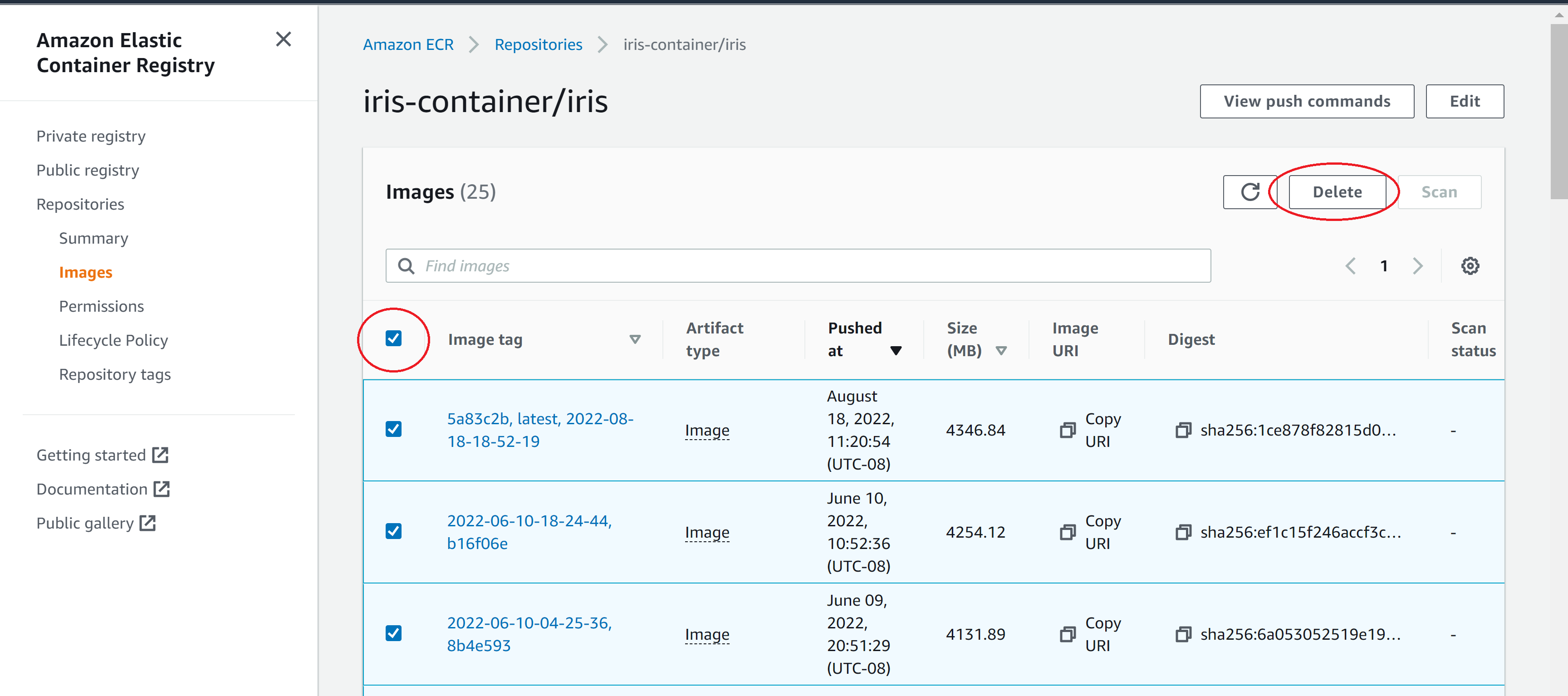
Before deleting the ECR, you will need to empty them first.
Click the repository name first and go to the individual ECR repository.
Select all items by clicking the first box.
Select
deleteand confirm the deletion.
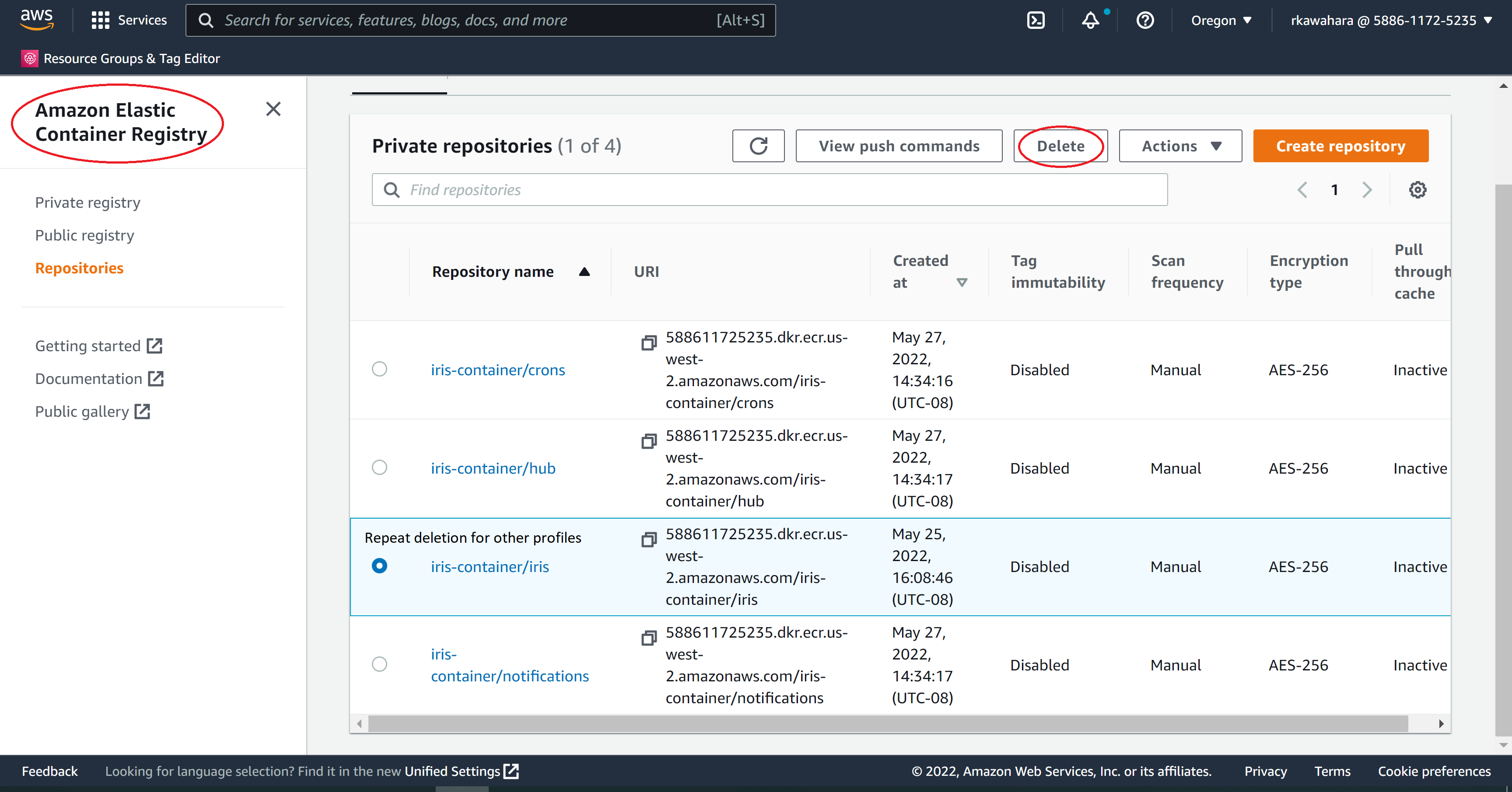
Go back to the ECR Registry and click the option next to the empty
<deployment_name>/<profile_namespace>repositoryClick the
DeletebuttonConfirm the deletion by typing
deletein the provided fieldClick the
Deletebutton
Repeat for each profiles
3. Delete the <deployment_name>-container CloudFormation stack
Navigate to the AWS CloudFormation console
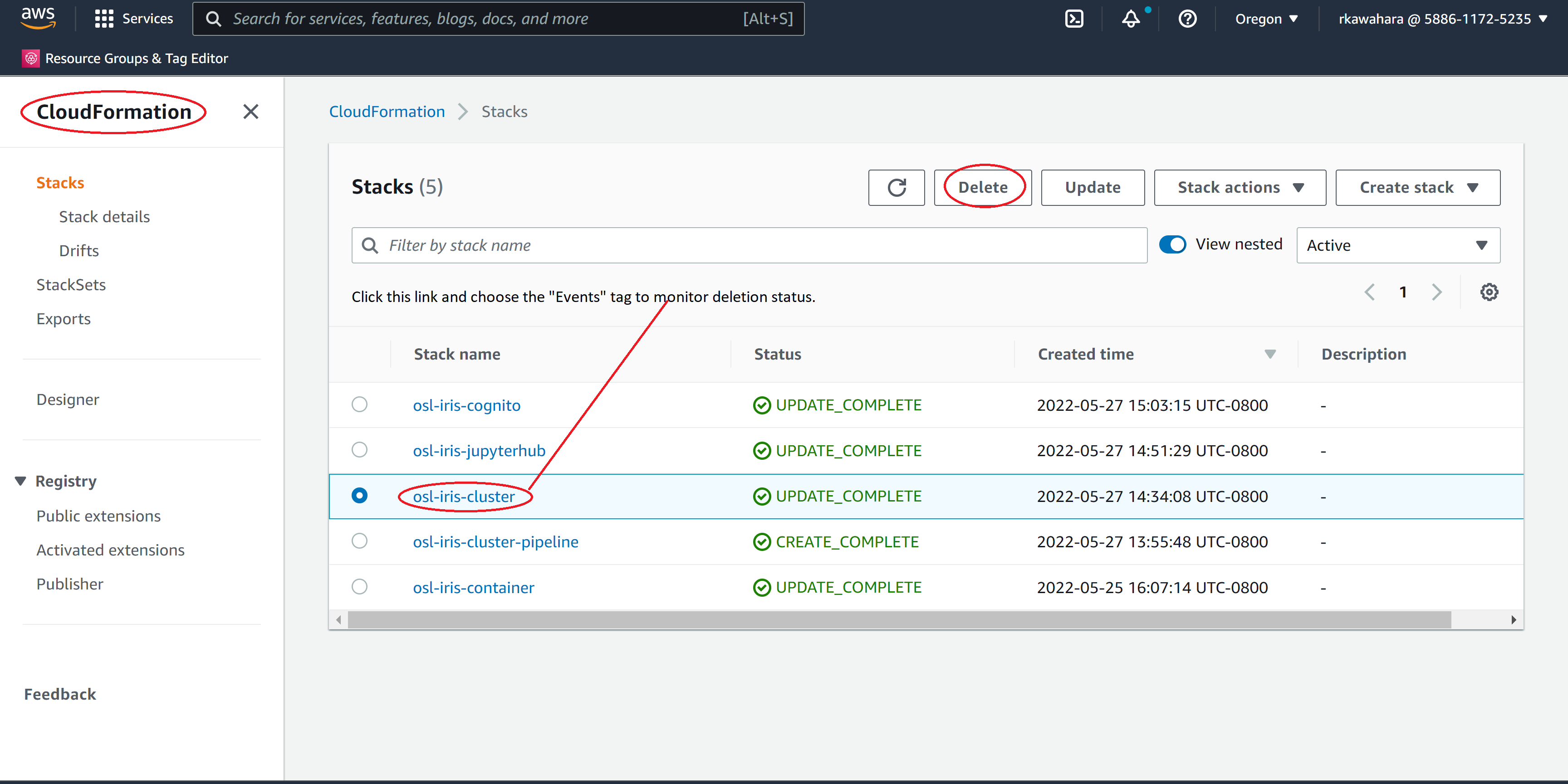
Click the
<deployment_name>-containerstack optionClick the
DeletebuttonClick the
Delete Stackbutton
Click the
<deployment_name>-containerstack nameClick the
EventstabMonitor the stack deletion progress
Click the refresh button periodically since the console doesn’t update events automatically
NB: Stack deletion process will be similar to above instructions for other stacks.
Deleting the rest of the CloudFormation Stacks
Unlike the container stack, the deletion order matters for the rest. On the bright side, the deletion process should be similar to the container stacks.
Specifically, you will need to delete your stacks in the following order:
<deployment_name>-jupyterhubstack<deployment_name>-clusterstack*
<deployment_name>-cluster-pipelinestack
NB:*These stacks have additional steps.
In above order, follow these steps (except for stack 3):
Delete the
<deployment_name>-<stack_name>CloudFormation stackNavigate to the AWS CloudFormation console
Click the box next to the
<deployment_name>-<stack_name>stackClick the
Deletebutton 1. Click theDelete stackbuttonClick the
<deployment_name>-<stack_name>stack nameClick the
EventstabMonitor the stack deletion progress
Click the refresh button periodically since the console doesn’t update events automatically
If you are deleting stack 3 (<deployment_name>-cluster-pipeline), you will need to follow these steps first before deleting the stack:
Delete
hubandnotificationsECR reposNavigate to the AWS Elastic Container Registry
Delete
<deployment_name>/huband<deployment_name>/notificationsrepository.
NB: Refer to the Delete ECR Repos section for how to delete ECR repos.
Delete EBS Snapshots and Volumes
To mitigate the cost associated with storage space, it is crucial to deallocate unused resources. The below steps will guide you on how to do so.
First, navigate to the AWS EC2 console - this step should be identical for both EBS snapshots and EBS volumes.
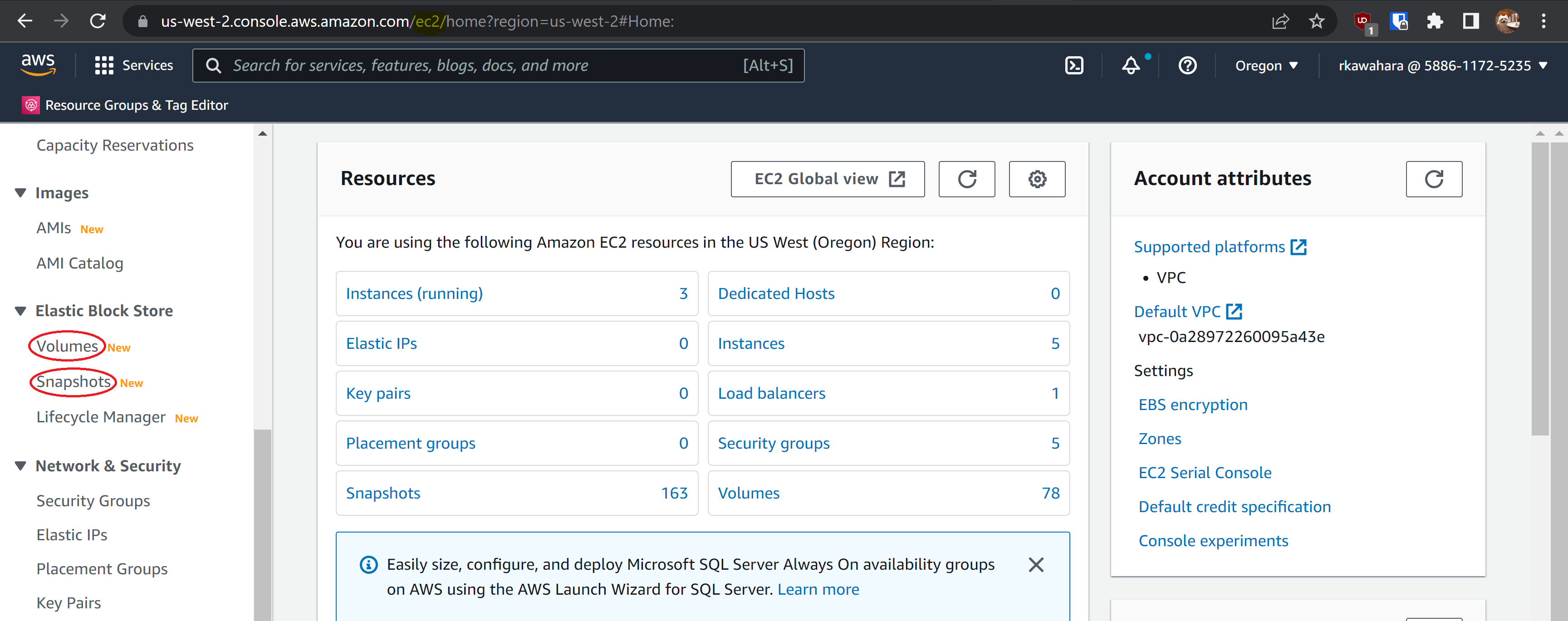
Delete EBS snapshots
Click the Snapshots link in the sidebar menu
Filter by
<cost allocation tag>:<deployment_name>Double check that you filtered for the correct deployment!
Select all snapshots
Select
Deletefrom theActionsmenuConfirm by clicking the
Yes, deletebutton
Delete EBS volumes
Navigate to the AWS EC2 console
Click the Volumes link in the sidebar menu
Filter by osl-stackname:
<deployment_name>Double check that you filtered for the correct deployment!
Select all volumes
Select
Delete volumesfrom theActionsmenuConfirm by clicking the
Yes, deletebutton
(Optional) Confirm that all resources have been deleted
Once you’ve taken down the deployment, you may want to verify the resource usage.
Wait a day for deleted resources to update in the tag editor
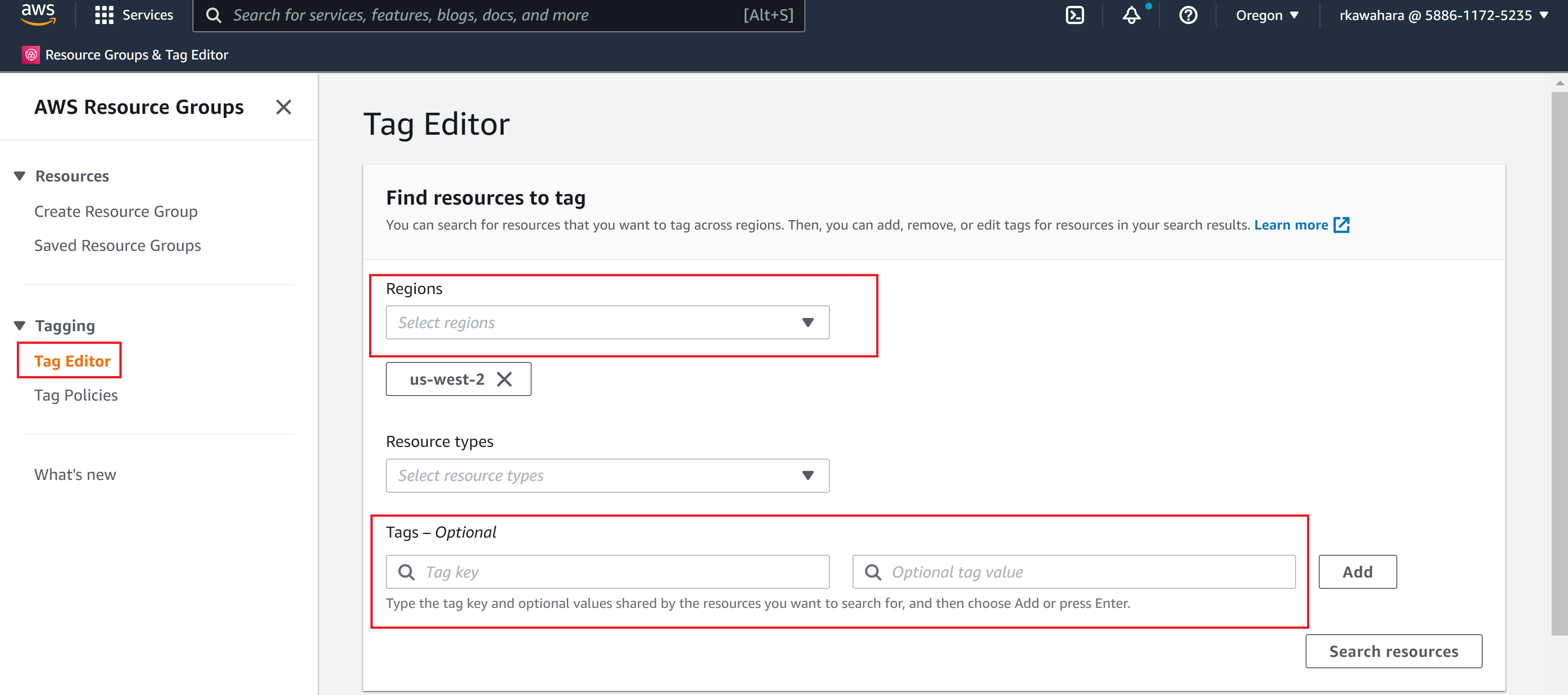
Navigate to the AWS Resource Groups and Tag Editor console
Select the Tag Editor link in the sidebar menu and fill in the following:
Regions:
<current-region>Tags:
Key: Cost allocation tagValue:<deployment_name>
Click the
Search resourcesbuttonIdentify and delete any remaining resources
(Optional) Delete Calendar
Now that you are done with taking down the deployment, you will need to delete the calendar notifications.
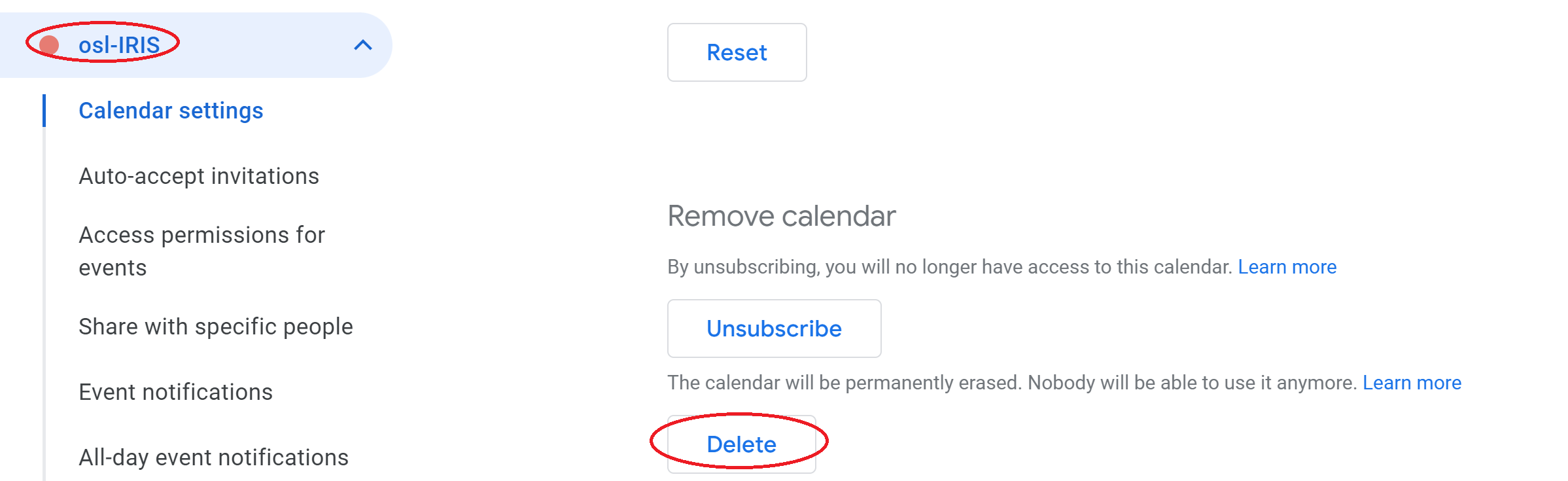
Go to your Google Calendar
Choose a deployment you wish to remove
Open
Settings and SharingClick
Deleteunder Remove calendar