Multi-Factor Authentication (MFA) is required to access OpenScienceLab resources.
Currently, we support TOTP-based authentication
Before You Begin
A TOTP-enabled MFA application is required to use OpenScienceLab resources. While the most widely utilized approach is through a smartphone application, there are also several desktop clients that provide this functionality.
Setup Steps
Follow the prompts for setting up MFA during OpenScienceLab account creation.
Add a new MFA device:
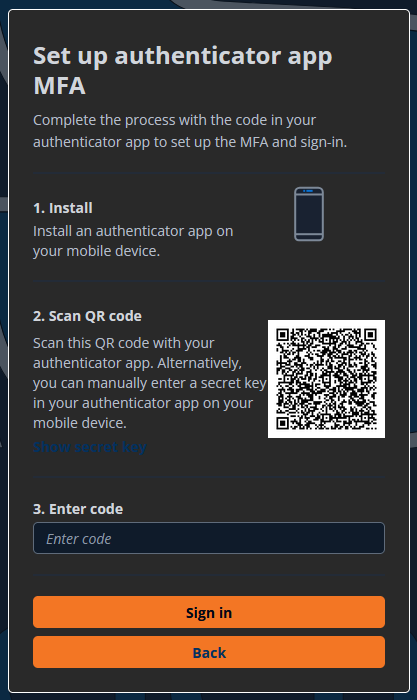
In your Authenticator App, the configuration will show up as
portalcdkstack-prod.auth.us-west-2.amazoncognito.com: {osl-username}
Resetting MFA
If you have an older OpenScienceLab MFA set up that looks like OpenScienceLab: {osl-username}, it is no longer valid and should be removed.
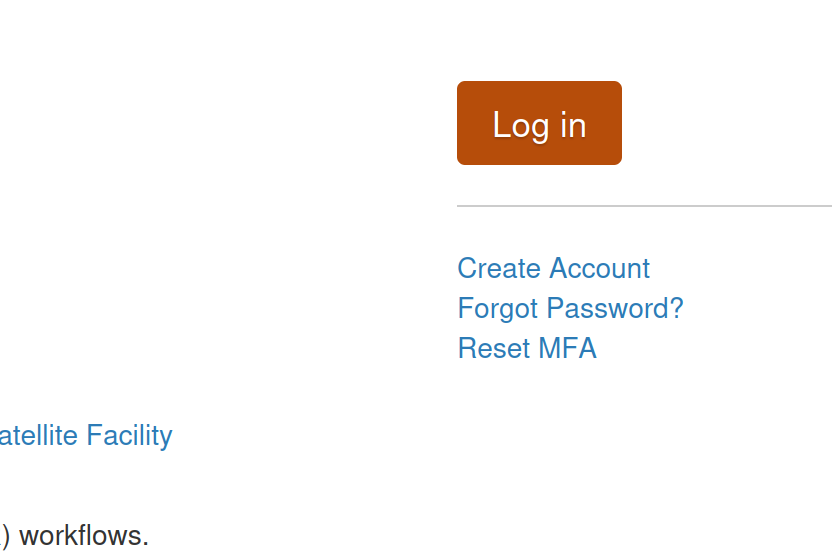
On the OpenScienceLab landing page, click the reset MFA button:
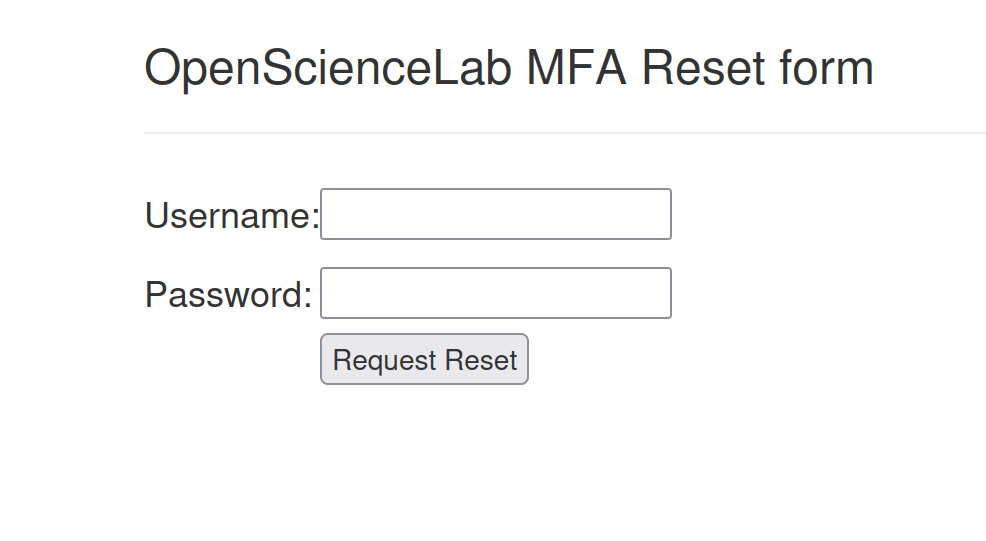
Fill out the MFA reset form with your username and password
In your email, find your reset email and follow the link.
It should arrive almost immediately, if you don’t see it, check your spam folder.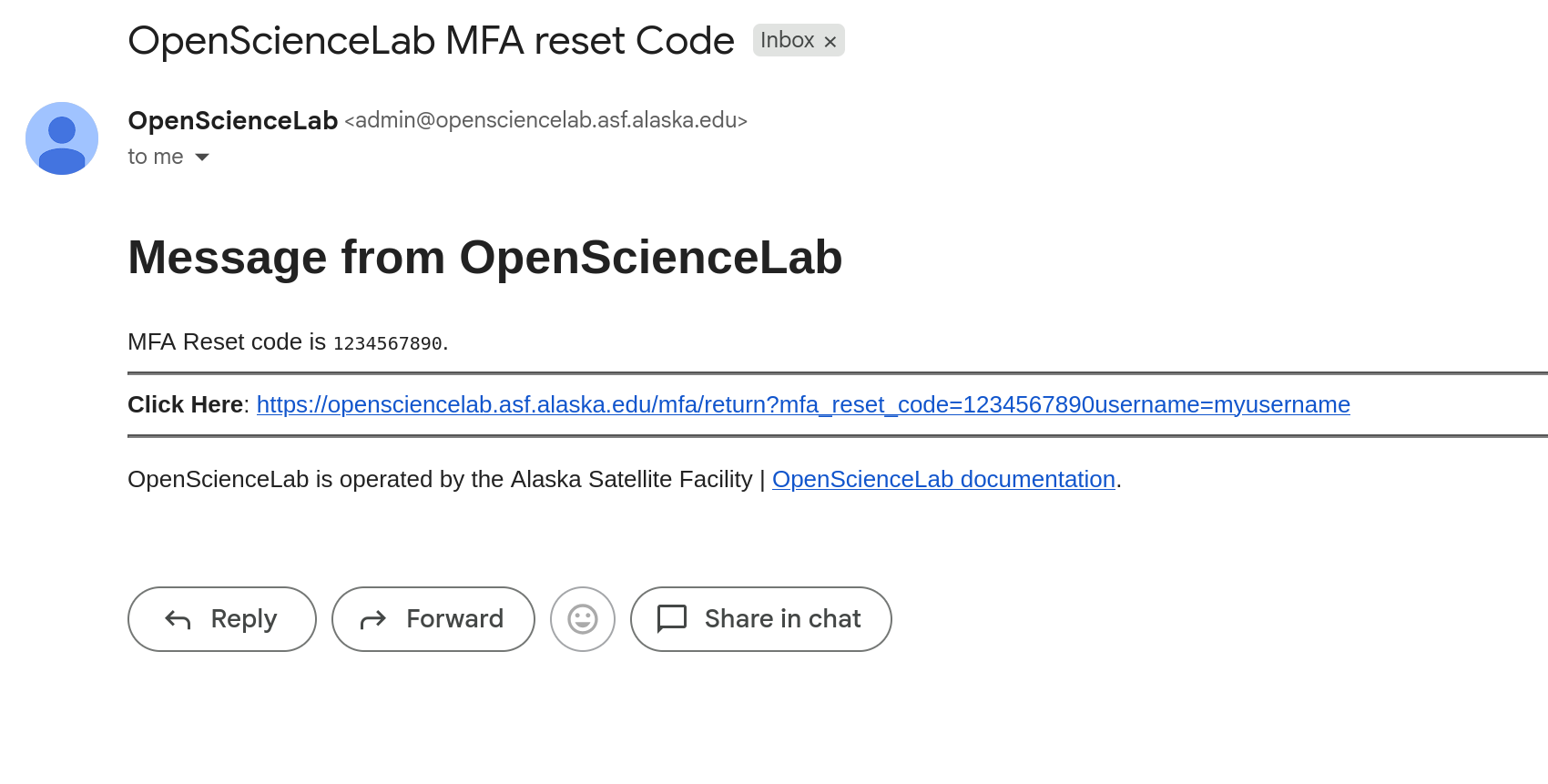
Back in OpenScienceLab, fill in your password to the MFA reset form
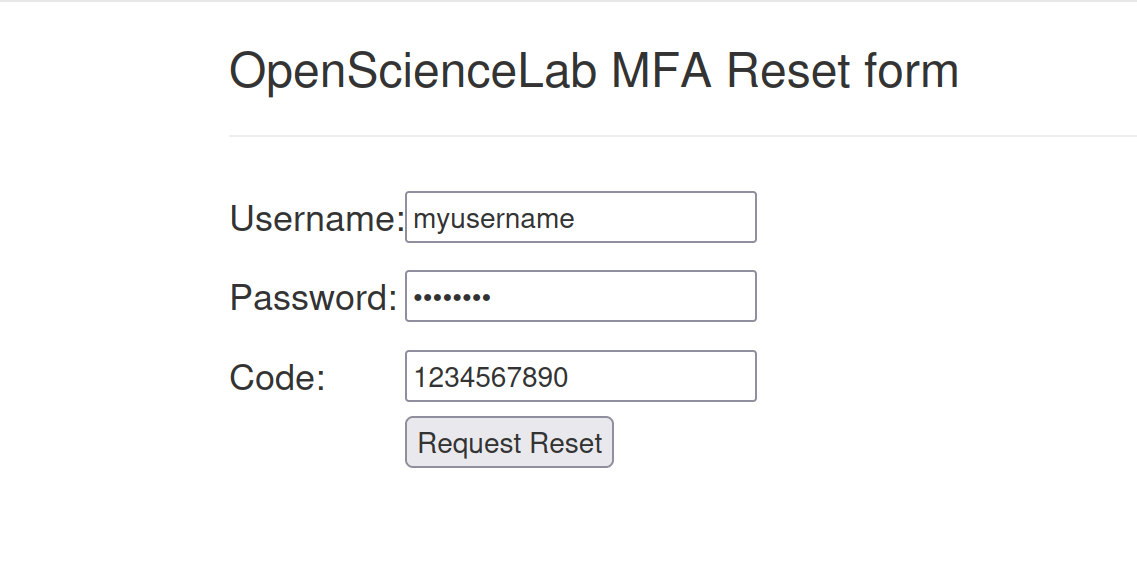
You should see a page indicating your MFA reset was successful
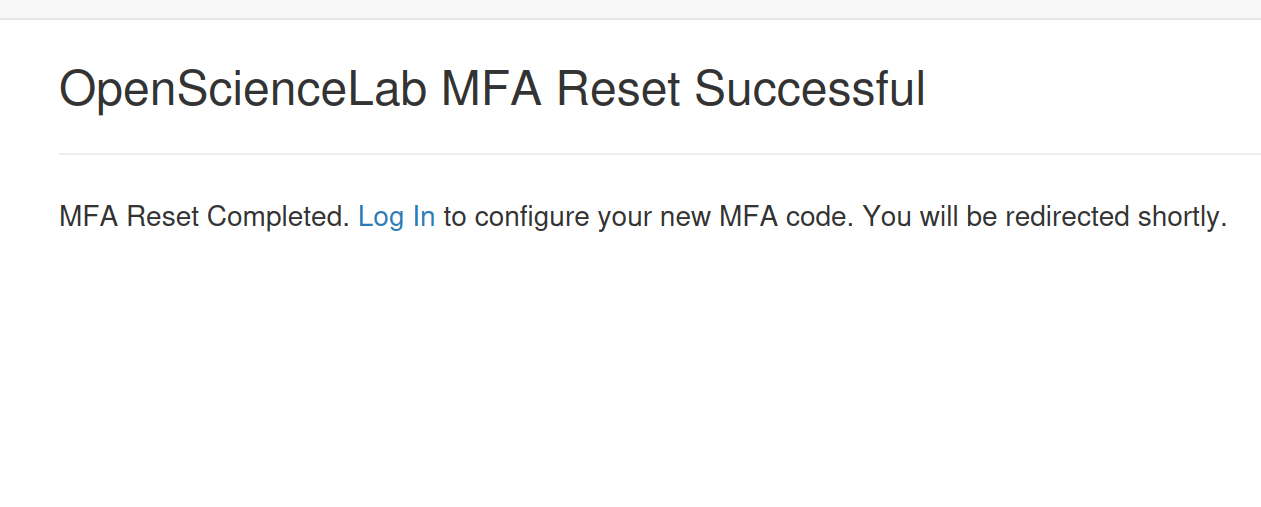
Log back into your account to set up your new MFA
Troubleshooting
If the MFA Code check is not successful, there are a few potential issues:
One of the codes was mis-typed.
You may have provided an unrelated MFA code
Your code may have expired between copying and submitting it
If the problem persists, try resetting your MFA
For additional issues and further troubleshooting, please email
uaf